Full screen on the iPhone
Safari on the iPhone can’t switch web pages to full screen, so the address bar and toolbar take away part of the rink. The fix: put Faceoff 27 on your Home Screen as an app. Launched from there, the game runs edge to edge – no download, no App Store, done in a minute.
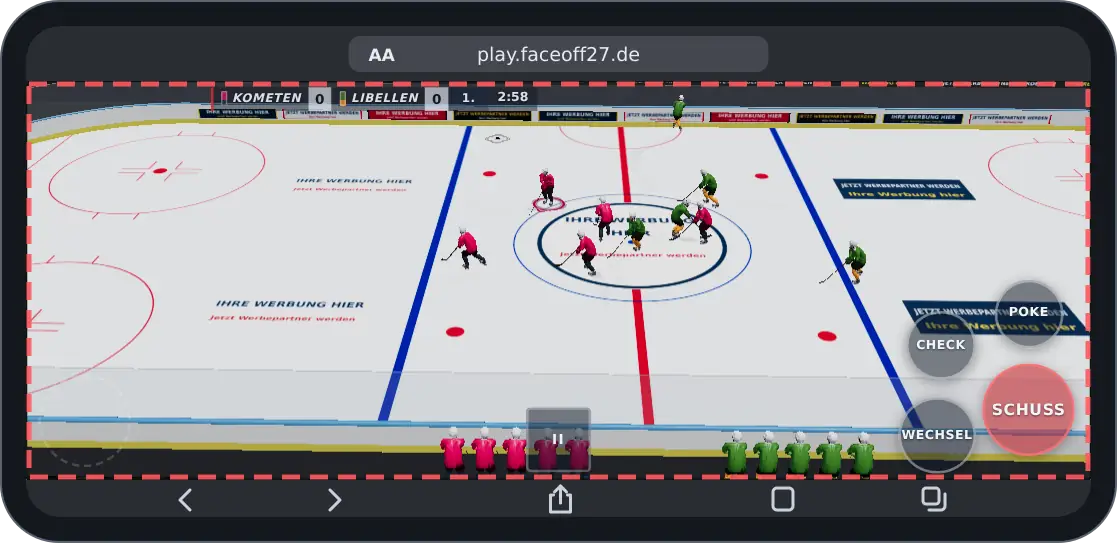
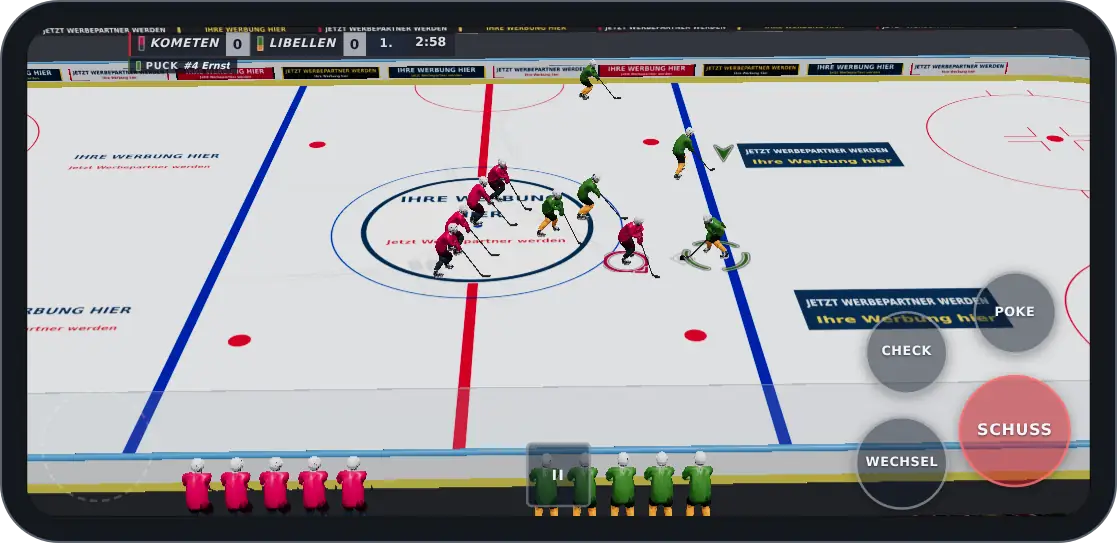
How it works – step by step
-
Tap “Share”
Open play.faceoff27.de in Safari and tap the Share icon (a square with an arrow pointing up). It sits in the bar at the bottom (in landscape, at the top depending on your iOS version).
Can’t see it? On newer iOS versions, first tap “•••” (three dots) next to the address, then “Share”. If the bar is collapsed, tap the address at the bottom briefly.
-
Choose “Add to Home Screen”
In the menu that opens, swipe down and tap “Add to Home Screen” (icon: square with a plus).
-
Tap “Add”
The name “Faceoff27” is already filled in. If an “Open as Web App” switch appears, leave it on. Then tap “Add” at the top right.
-
Launch from the new icon
The Faceoff27 icon is now on your Home Screen. Always launch the game from there – not from Safari. Only then are the bars gone.
-
Turn sideways and play
Turn the iPhone to landscape. If it is locked, switch off Orientation Lock in Control Center (swipe down from the top right, icon with a lock and an arrow).
Without the Home Screen: how to make it bigger
If you’d rather play in a Safari tab, these tricks help:
- Keep only one tab open. With several tabs, Safari also shows a tab bar in landscape.
- Hide the toolbar: tap “AA” (or, depending on your iOS version, the page menu on the left of the address bar) and then “Hide Toolbar” if offered. A tap on the top edge brings it back.
- Use landscape. In portrait the rink is too small; the game then asks you to turn the phone.
iPad
On the iPad, full screen works directly in Safari: start a game and tap the ice once – Faceoff 27 then switches to full screen by itself (iPadOS 16.4 and later). The Home Screen route works the same way on the iPad.
Good to know
- The Home Screen app is the same game as in the browser – nothing is installed, and updates arrive automatically.
- The iPhone gives the Home Screen app its own storage. Settings and local progress from the Safari tab are not automatically available there.
- To remove it: press and hold the icon → “Remove App”. This also deletes its locally stored data.